By Zian Meng ·
Gyro: a little physics on your Mac
Gyro is a small native Mac app about movement: water finding its level, ingredients settling in a wok, and snow falling inside a globe. It puts seven interactive scenes in a transparent window on your desktop. You can move the object, change your view, and give the simulation a nudge. There is no score to chase. The response is the reason to play.

Apple silicon · macOS 14 or newer · Development build
Ad-hoc signed; not notarized. Read the setup notes.
An object you can move
The scene lives in a square, transparent window. Dragging moves it around your screen; Option-drag changes the viewpoint, and scrolling brings the object closer. Zoom grows the canvas with the scene. Near a screen edge, the view widens to keep rims and handles in frame. Settings holds the controls.
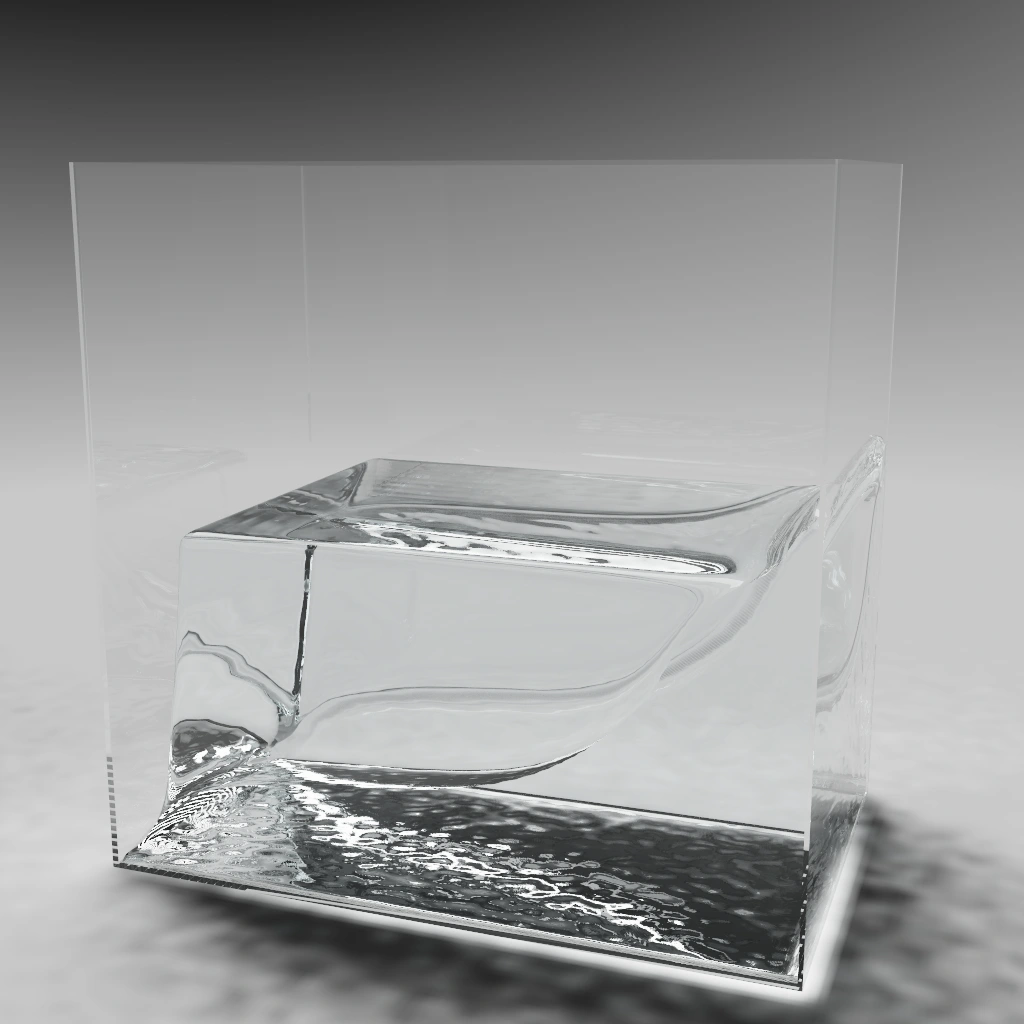
The water tank is the most detailed fluid scene. It uses particles to produce sloshing and breaking waves, then reconstructs a continuous surface for rendering. Glass and water bend and reflect the light around them. In Studio view, a floor catches the moving light beneath the tank. When movement stops, the water settles.
From water to a warm pan
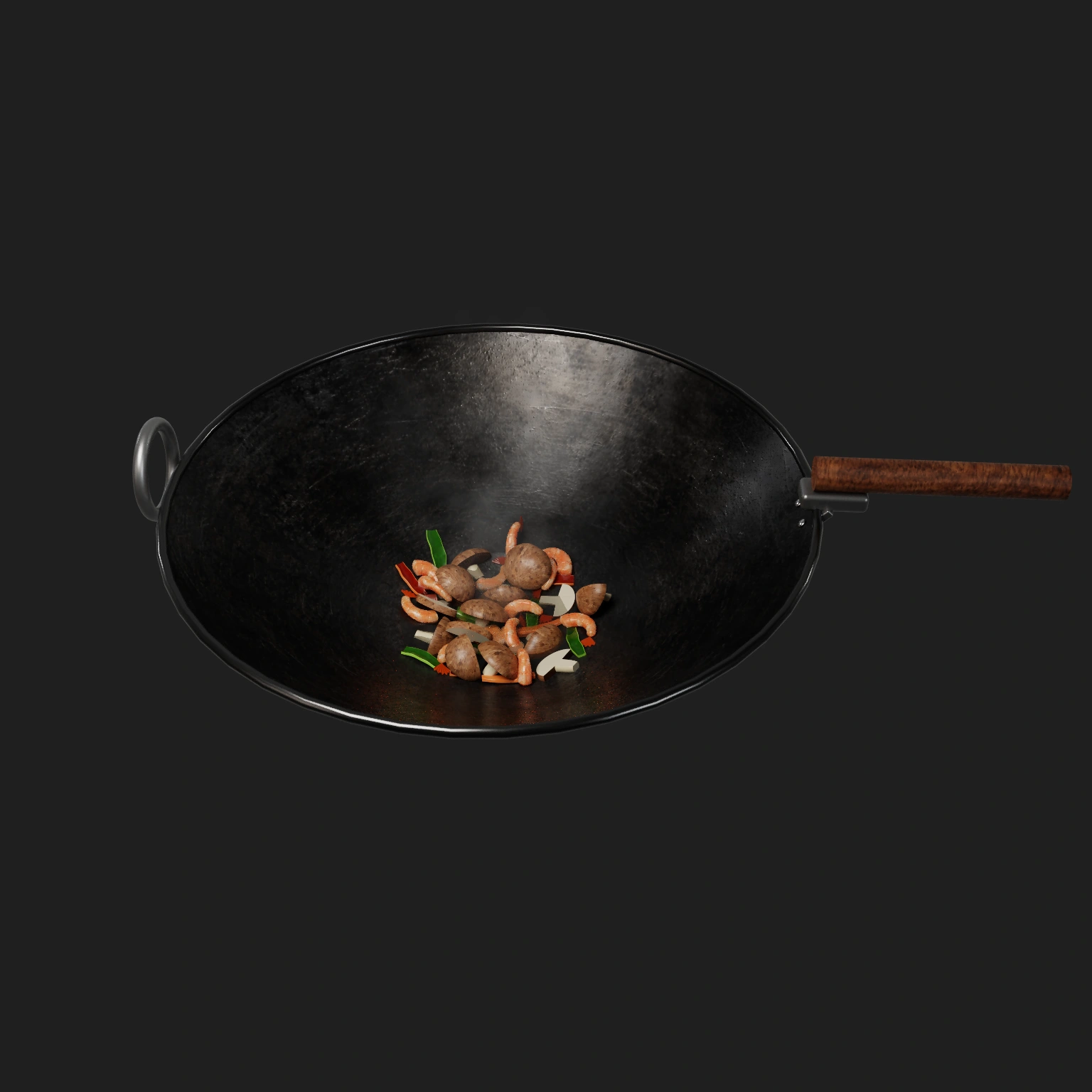
Press W and the tank becomes a carbon-steel wok. Shrimp, mushrooms, and peppers can slide, collide, tumble, and spill over its open rim. Tossing gives them airborne rotation; a fresh batch lets you start again. Oil moves downhill and returns as the pan levels. Burner heat changes the food over time, including shrimp turning pink and surfaces browning through contact.
On supported GPUs, the wok uses Metal ray tracing for lighting and reflections. Its food geometry is procedural and its material textures are synthetic artwork. This is a playful approximation: collisions, cooking, steam, and oil are simplified. It is a visual experiment, and its behavior should be read in that spirit.
Seven scenes, different moods
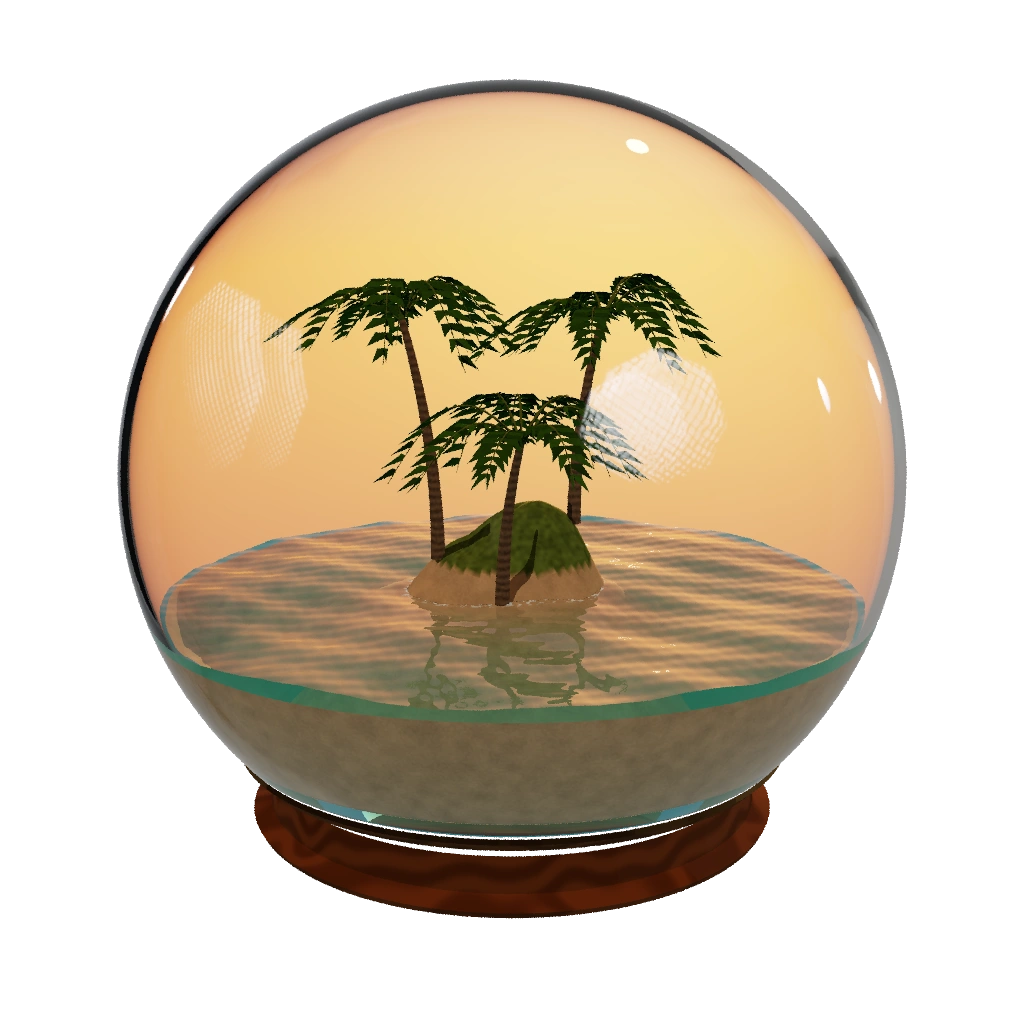
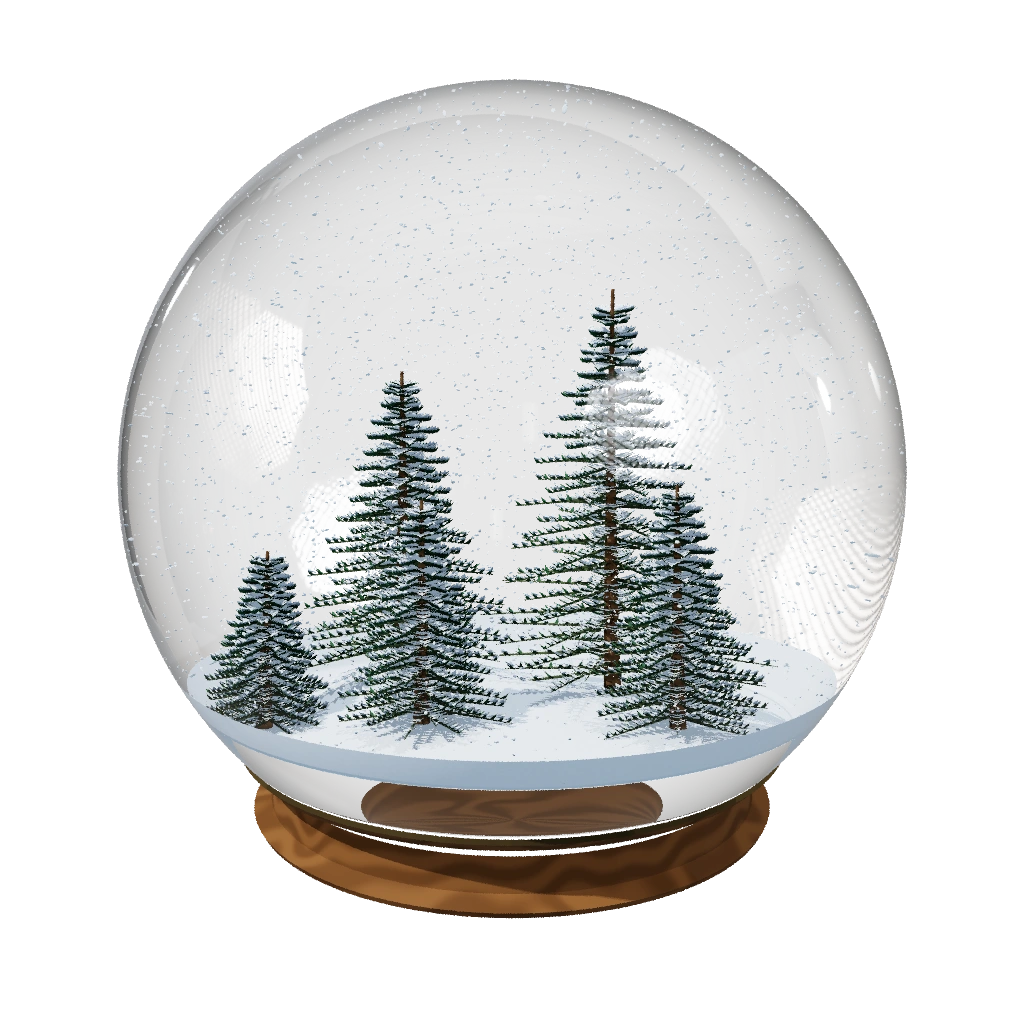
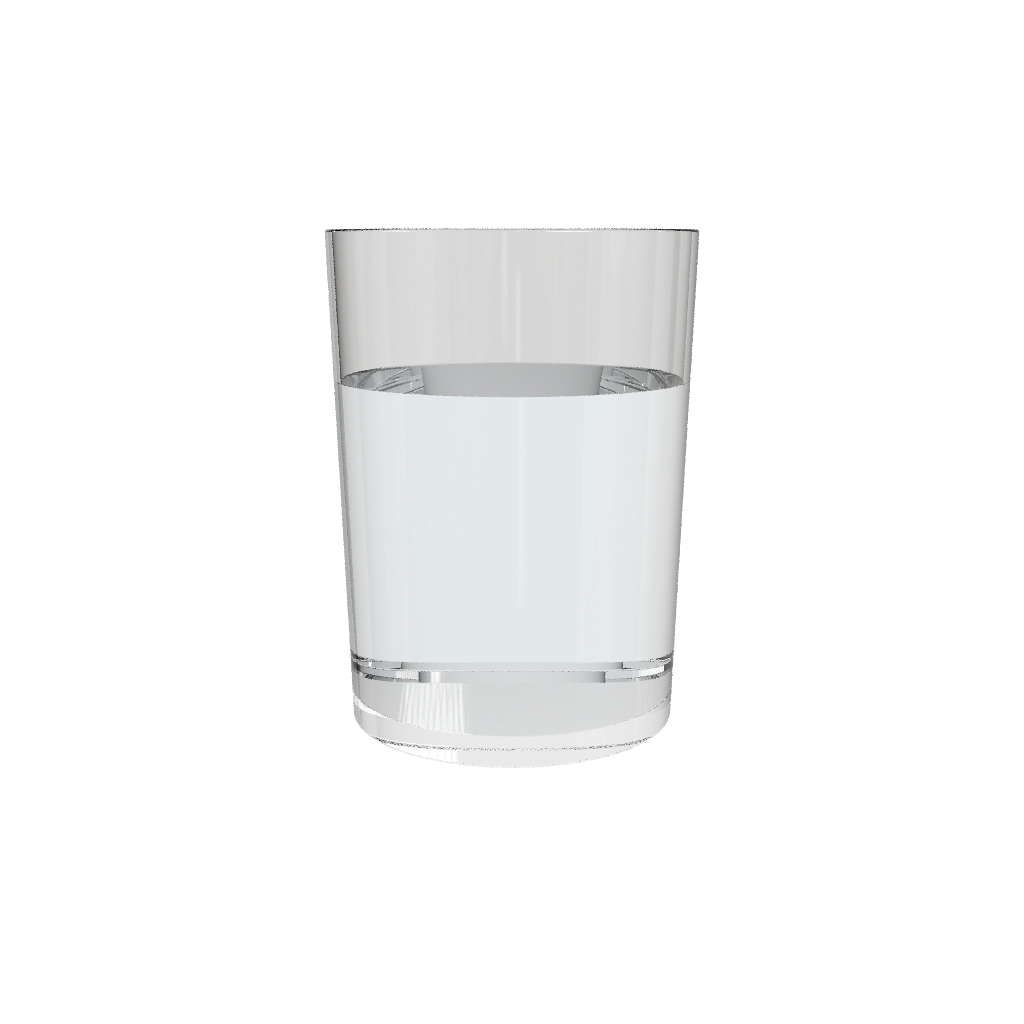
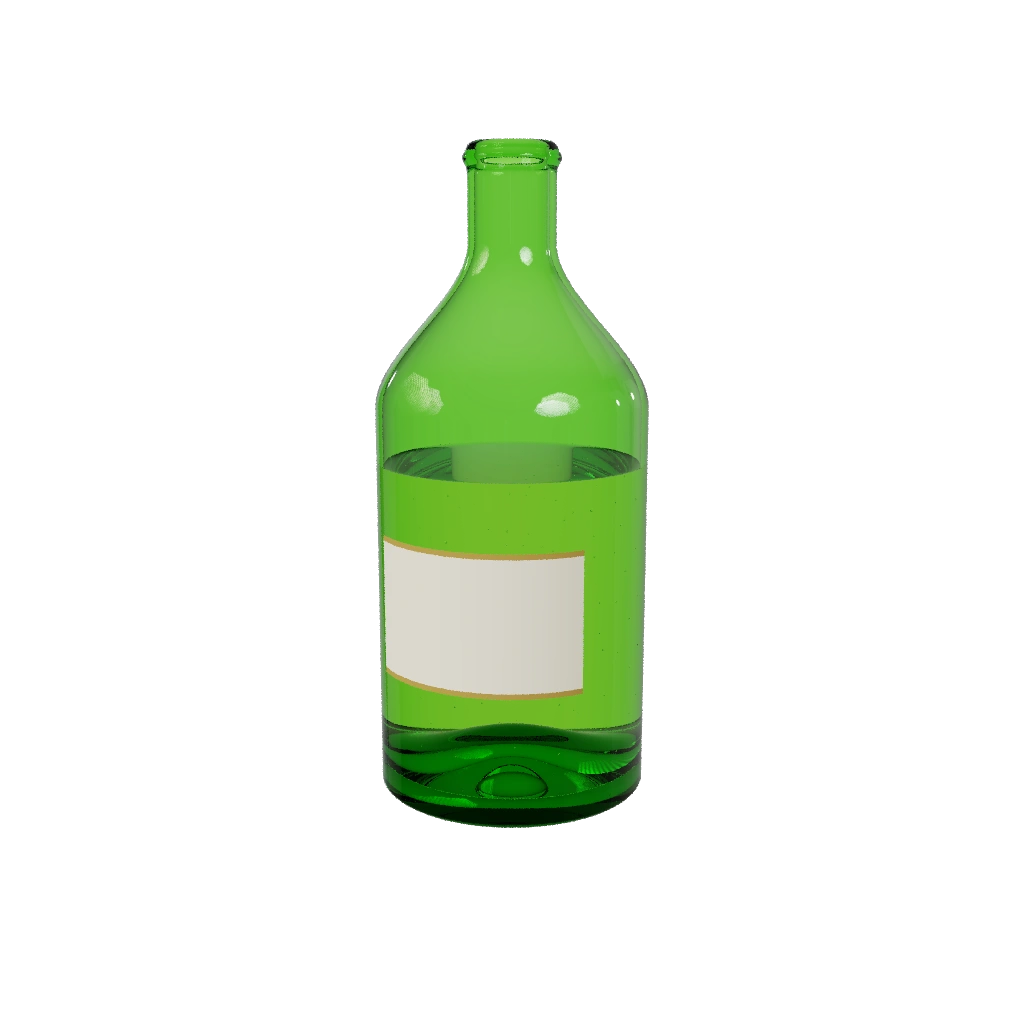
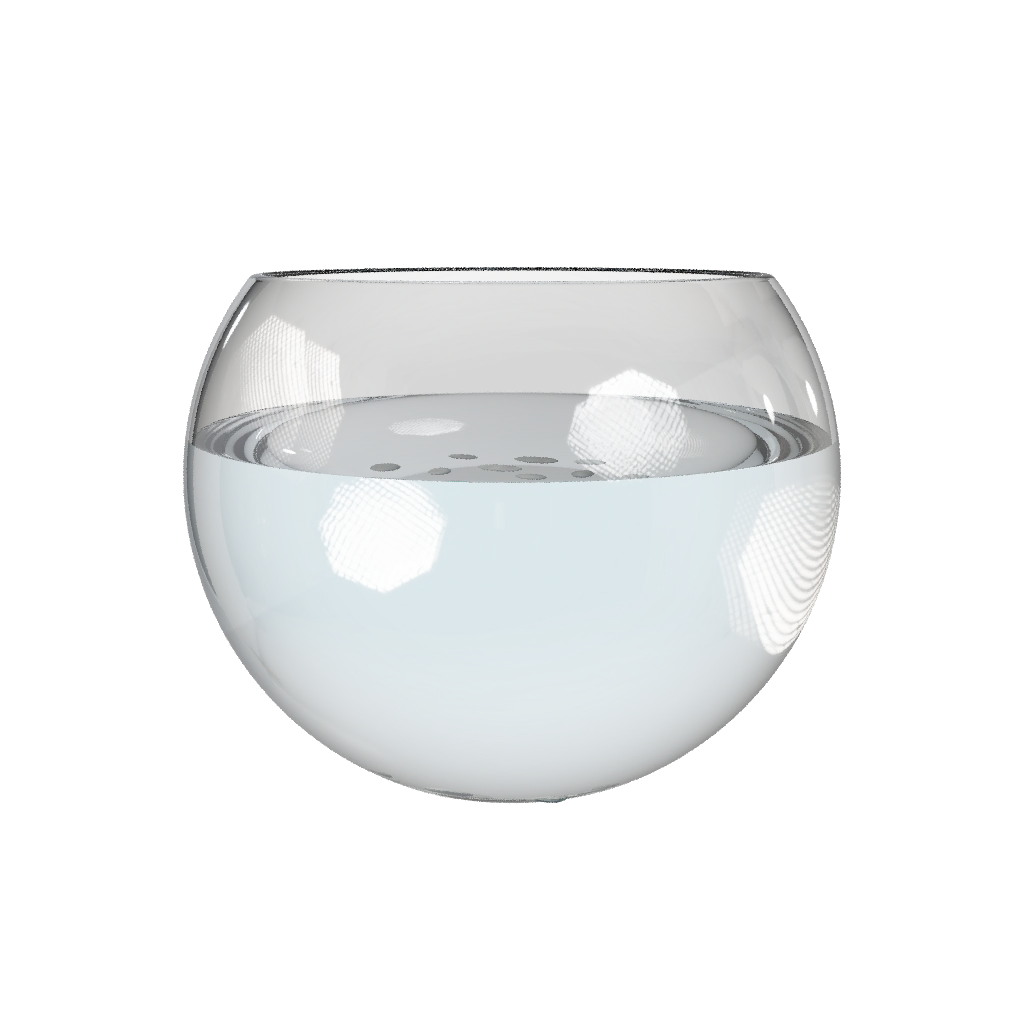
Alongside the tank and wok, there is an island globe, a snow globe, a water glass, a champagne bottle, and a fish bowl containing river stones. The island has ocean waves and a sunset sun you can adjust. Snow responds to a shake and settles afterward. The smaller liquid vessels use a lighter model with a level surface and damped slosh; the particle tank handles the breaking waves.
A few controls to learn
Start with window movement, orbit, and a splash. Dragging does not stir the liquid. For the glass, bottle, bowl, and tank, the fill keys change capacity by ten percentage points. The scene gallery in Settings opens every vessel, while these shortcuts keep the common actions close.
- Drag
- Move the window
- Option + drag
- Orbit the scene
- Scroll
- Zoom
- Space
- Pause or resume
- S
- Splash water or shake a globe
- − / +
- Change vessel fill by ten percentage points
- W
- Switch between Water and Wok
- T / R
- Toss food / reset the active scene
- I / N
- Open the island / snow globe
- D / Escape
- Enter / exit Desktop Water
- ⌘ ,
- Open Settings and the seven-scene gallery
Motion, camera, and your desktop
Hardware motion is experimental. Enable it in Settings, approve the temporary sensor reader’s administrator prompt, hold the Mac still, and calibrate. The reader uses an undocumented sensor interface, so support can vary between Macs and macOS versions. A new launch may ask again; it does not install a permanent privileged service.
Camera parallax is optional and off at launch. When enabled, Apple Vision processes the camera locally to adjust the viewpoint as you lean. Images are not saved or uploaded, and Gyro does not request a microphone. Optional desktop refraction needs macOS Screen Recording permission: it samples the screen behind the tank in memory, captures no audio, and uses those pixels to bend the view through the glass and water.
Try the development build
Gyro 0.25 requires an Apple silicon Mac running macOS 14 or newer. Download the ZIP, extract it, and move Gyro.app to Applications. This build is ad-hoc signed and has not been notarized by Apple. macOS may require you to review it in Privacy & Security before opening. The source archive includes the Swift and Metal code, artwork, tests, and build script for inspection or a local build with Xcode.
Begin with the default particle setting. Higher particle counts and lighting quality cost more GPU time and memory; the result depends on your Mac and display. Use “Benchmark This Mac” in Performance settings to measure your own setup. Still views recover native Retina resolution within the app’s allocation limits, while movement can temporarily lower it to keep interaction responsive.