Carthios runs on Mac today, and Windows support is coming on the v3 roadmap. Placement and cable planning apply to either desk, but the software steps below describe the current Mac app. Join the Windows waitlist for beta news; there is no Windows download or release date yet.
1. Put the screen where your hand already lands
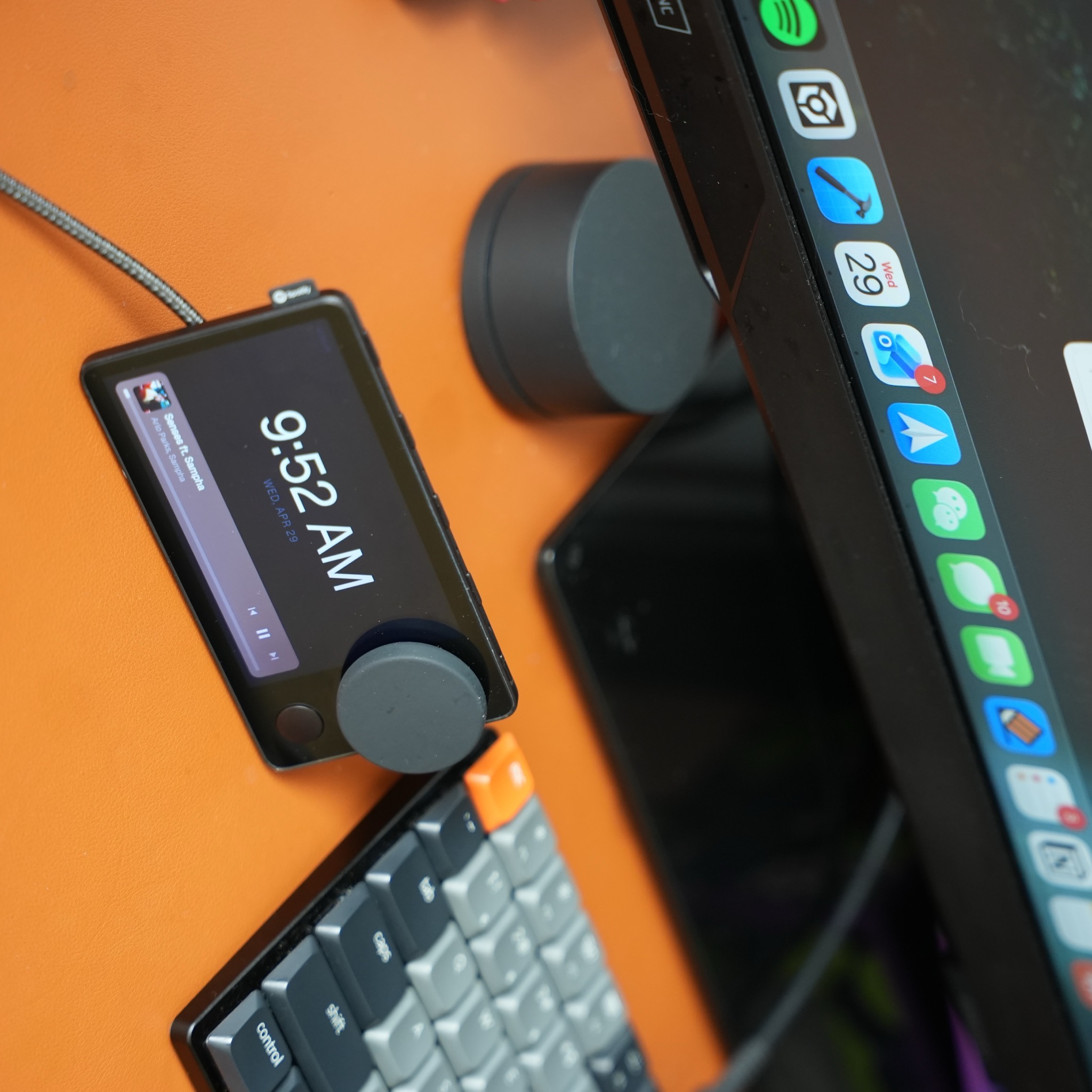
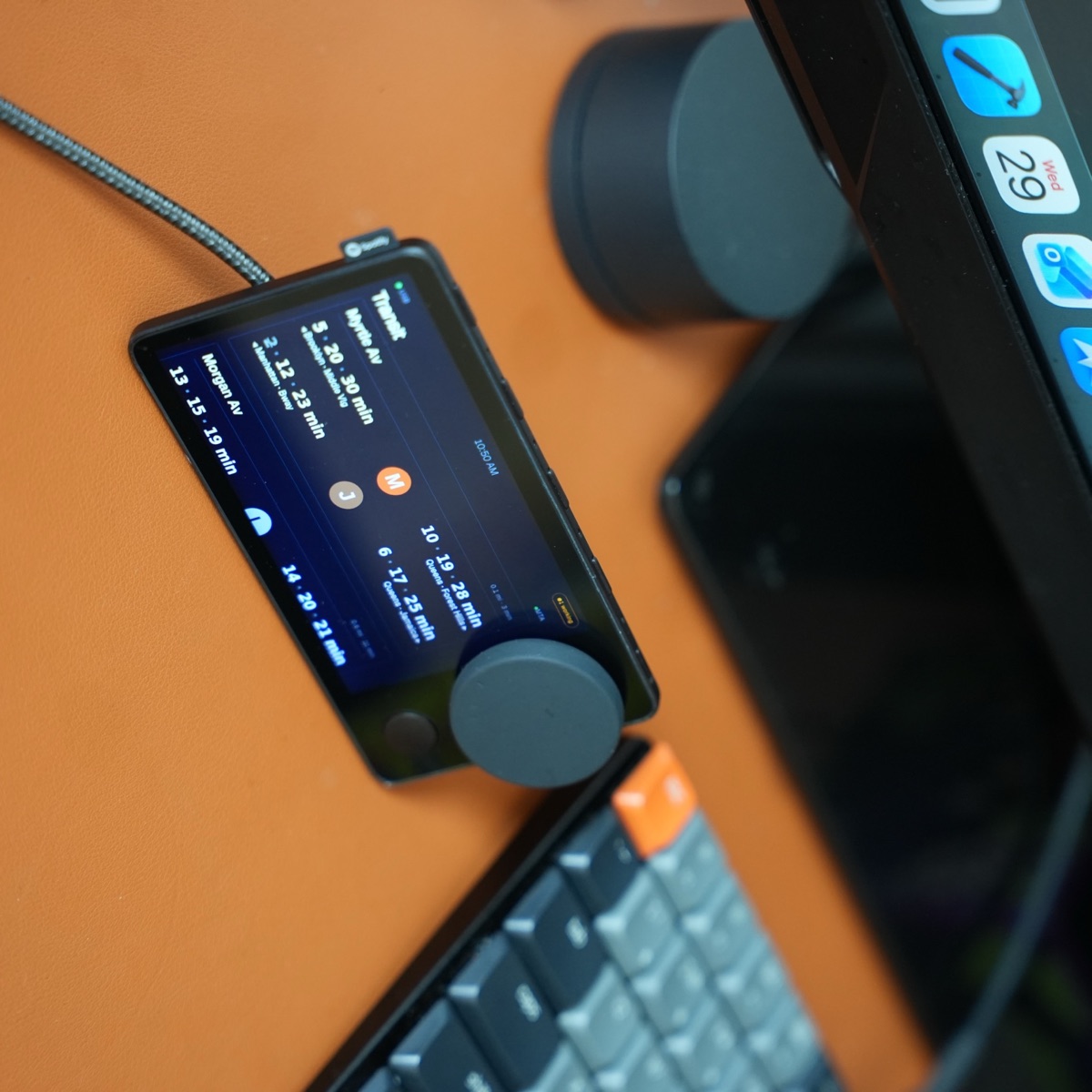
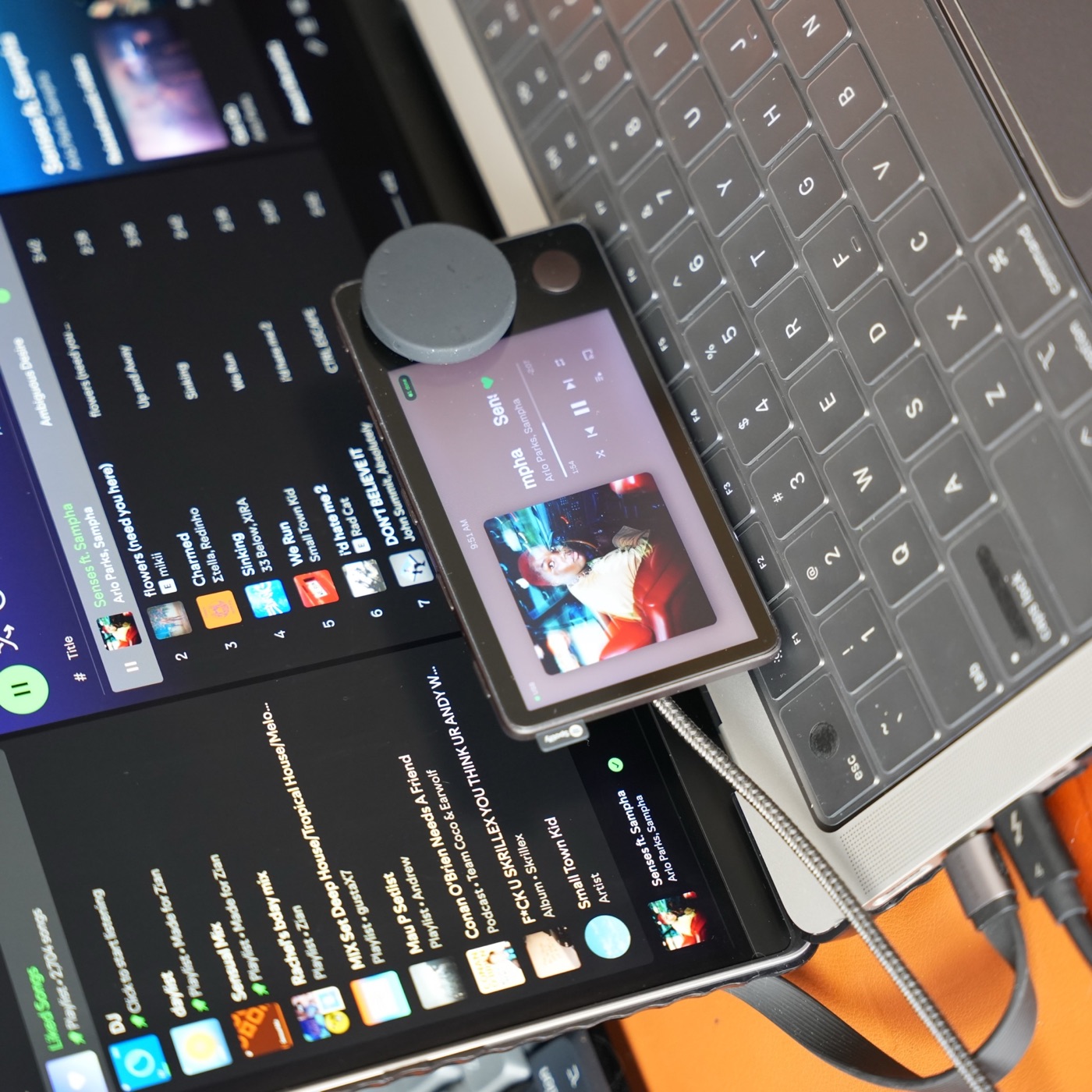
Place the Car Thing beside your monitor or keyboard, not behind the display. You want to read status at a glance and reach the dial without leaning forward. A small stand or weighted shelf keeps the screen at a comfortable angle.
2. Use a real data cable
Use a short, data-capable USB cable and route it toward the back of the desk. Avoid hubs that sleep aggressively or cables that only provide power. A direct connection is the easiest way to make reconnection predictable.
3. Give it one job at a time
With Carthios, the Car Thing can show music and podcasts, local weather, transit departures, calendar and reminders, private Mac dictation, timers, coding status, and system health. The point is not to cram every widget onto one screen; choose the context you want during the current part of your day.
A calm everyday workflow
- Launch Carthios when you start work.
- Keep the dashboard on the clock, music, or agenda view.
- Turn the dial for volume or navigation and use the physical buttons for quick changes.
- Use the Mac menu when you need to change features, permissions, or connection behavior.
This setup keeps the original Car Thing character—the screen and tactile controls—without pretending it is still the old Spotify service.