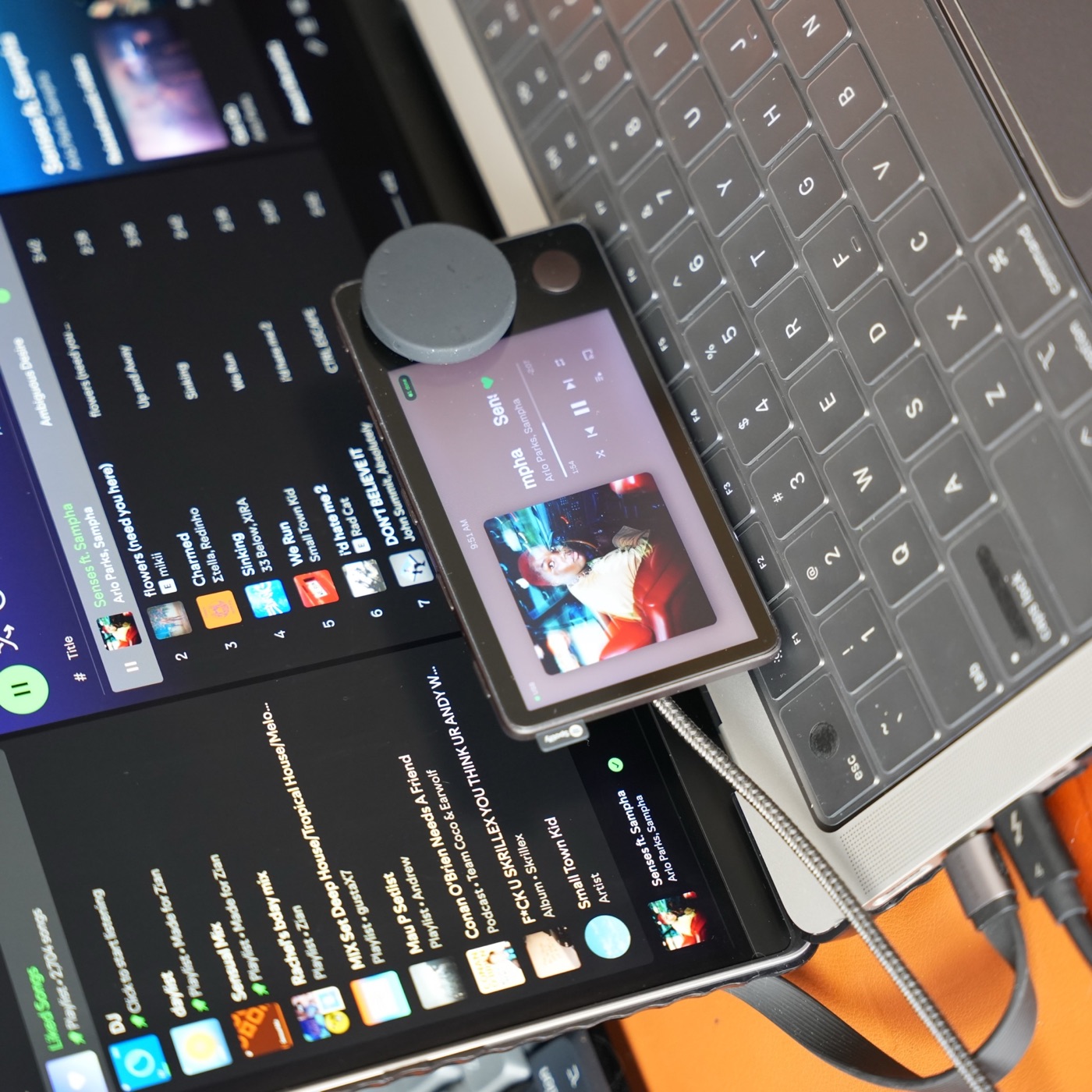
1. Separate the shutdown from a hardware fault
The original Spotify Car Thing service is discontinued. A screen that no longer reaches that service does not, by itself, tell you whether the display, USB connection, dial, or buttons have failed. A replacement dashboard gives the device a new role; it does not bring Spotify’s old backend back.
If the device was previously flashed or stops during startup, read the recovery guide before choosing another firmware image. Note the last software installed and the exact screen or error you see.
2. Check what your chosen route needs
For Carthios today, you need an Apple Silicon Mac running macOS 13 or newer, a Spotify Car Thing, and a data-capable USB cable. Your Mac runs the companion app and provides the integrations. Windows support is coming on the v3 roadmap; the Windows hardware requirements and release date are not announced yet. Keep that distinction in mind before buying a device for a Windows desk.
If your computer does not meet those requirements, start with the reuse decision guide. Do not buy an adapter expecting it to restore the discontinued service or make an unsupported computer compatible.
3. Prove the cable carries data
A powered screen only proves that power is reaching the device. It does not prove USB data is working. First setup, dashboard updates, screenshots, and recovery require USB in Carthios.
- Use a cable known to transfer data, not just charge another device.
- If Car Thing powers on but is not detected, try another data cable and a direct Mac port before adding hubs or adapters.
- Keep the connection stable while setup installs the matching dashboard.
4. Validate one useful workflow
Follow the Mac dashboard setup steps, then start with Clock and music controls. Check that the screen updates and the dial and buttons respond. Add Weather, Transit, or Agenda after the basic connection works, granting only the permissions needed for the features you choose.
If an integration is empty while the dashboard still responds, check its permissions and source app before treating it as a device fault. The troubleshooting documentation separates connection problems from feature-specific ones.
5. Decide whether it earns a place on your desk
Put the screen where you can read it and reach the dial without pulling on the cable. Try one recurring job: controlling music, checking the next departure, or running a focus timer. If none fits your routine, passing the device to someone who wants to experiment can be more useful than buying more accessories.